
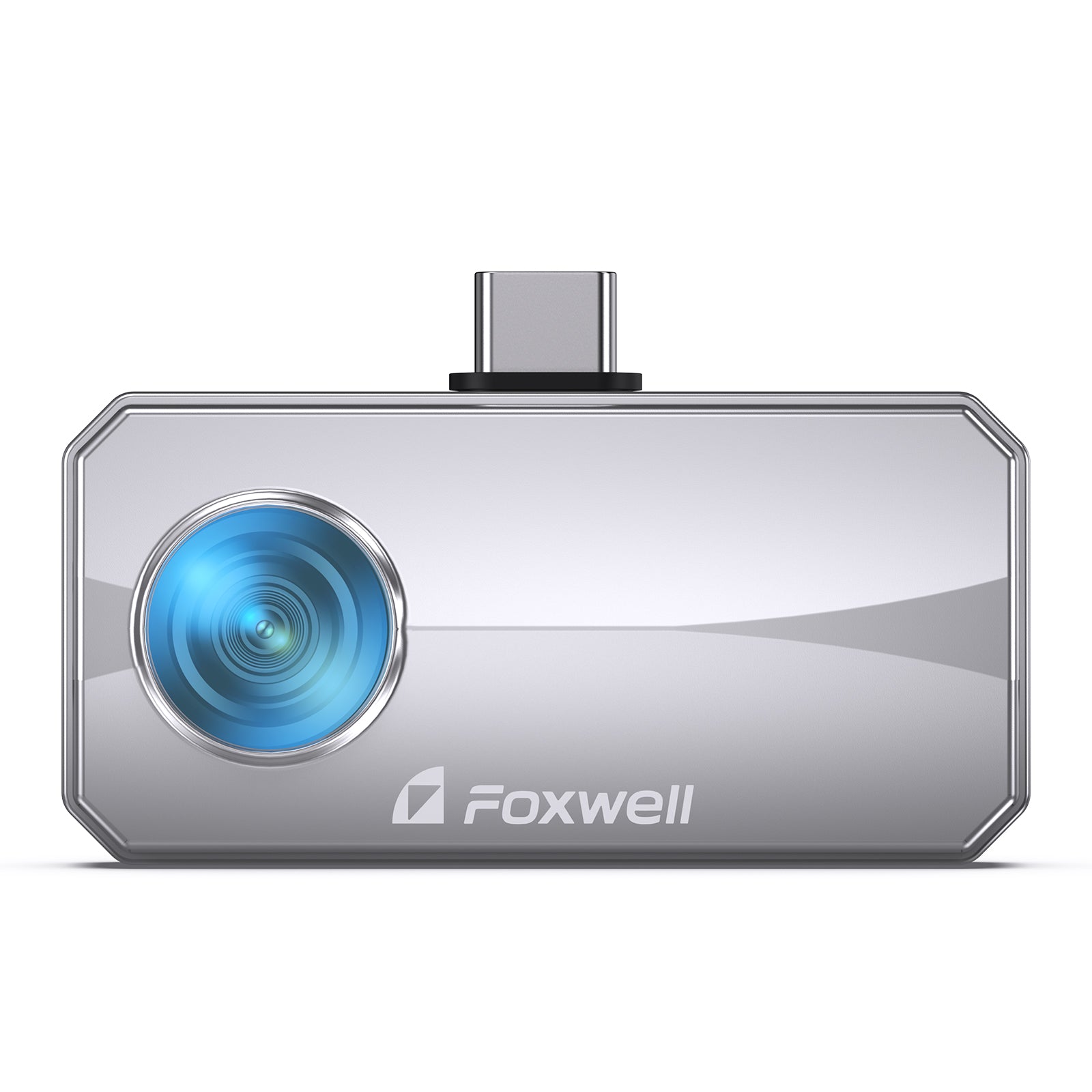
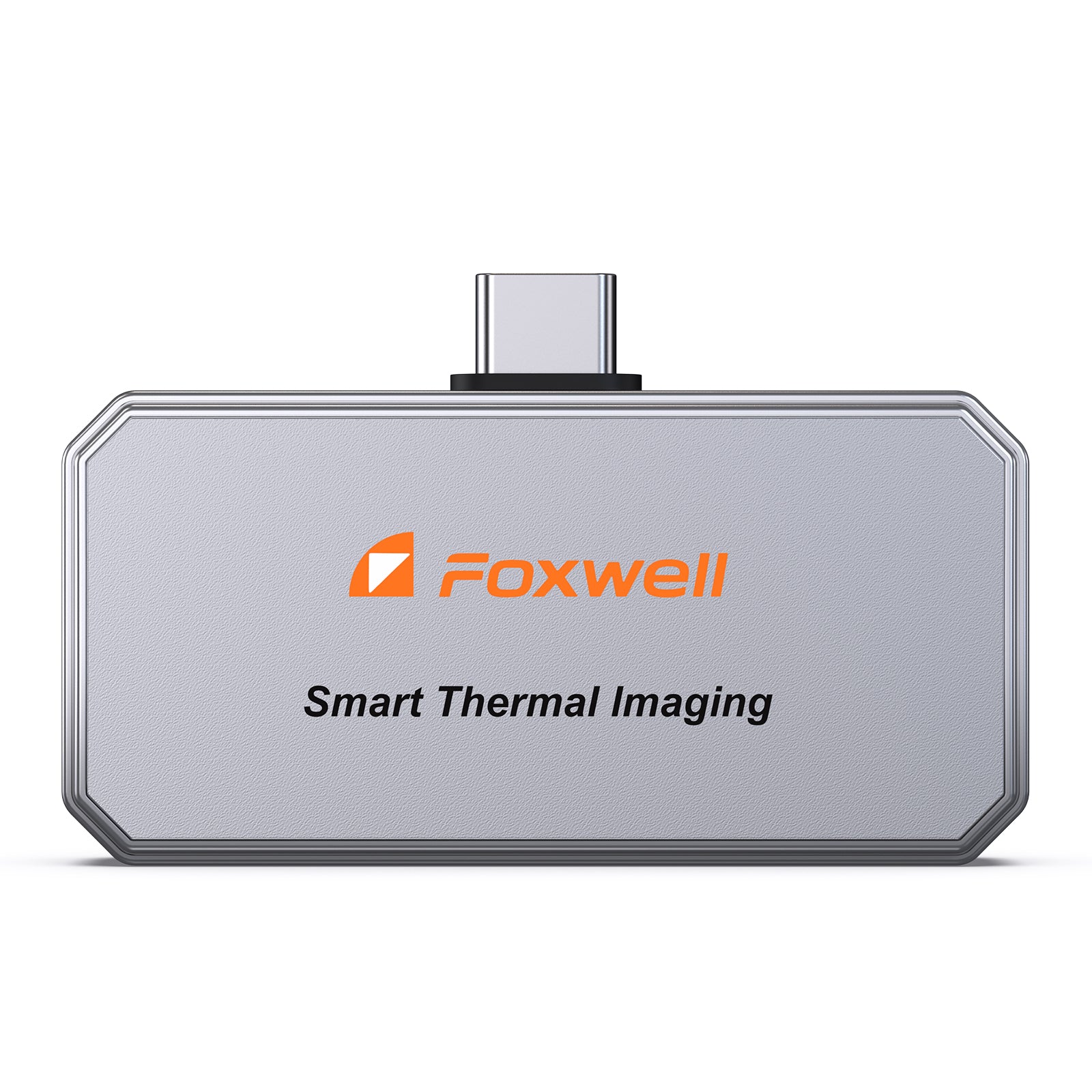
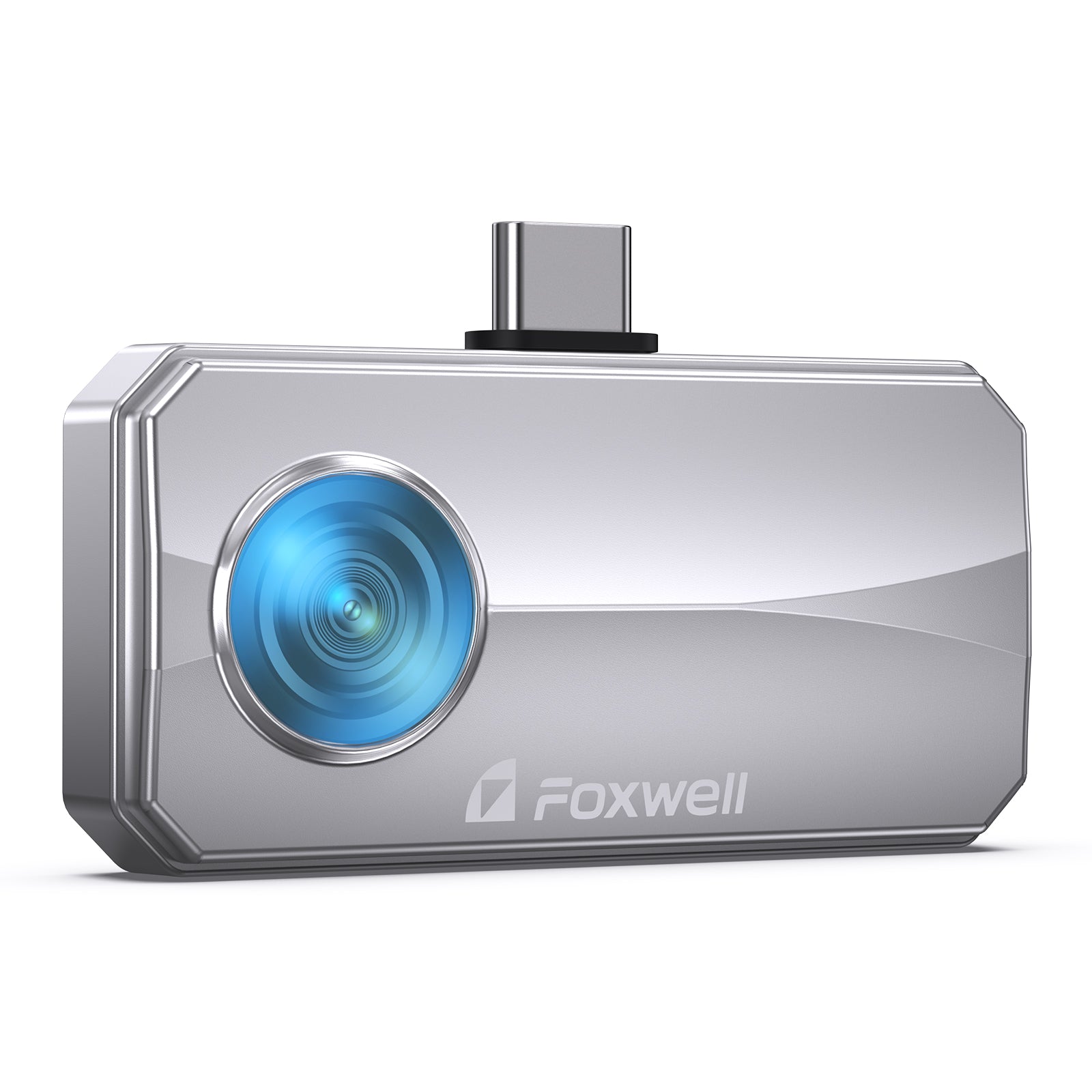
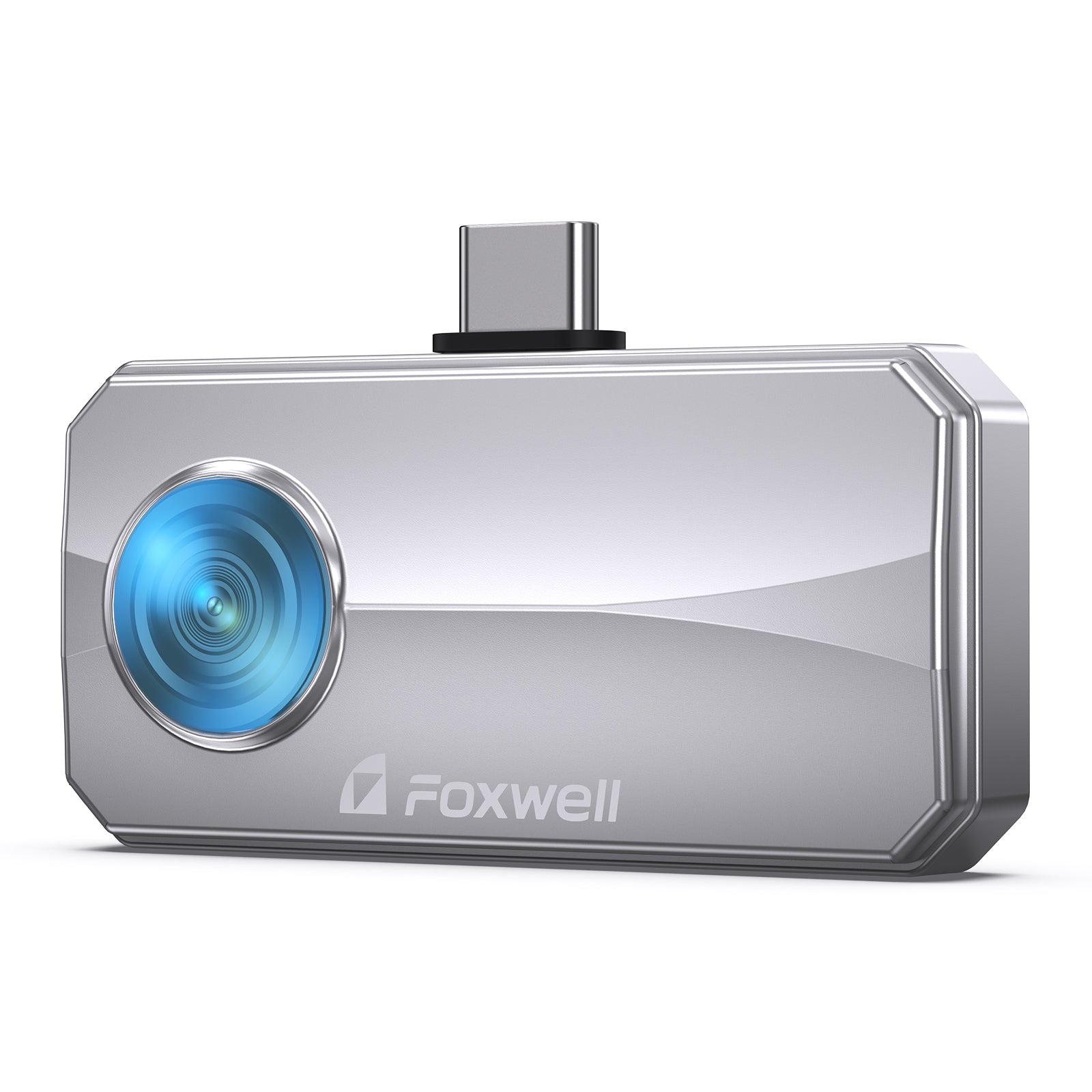
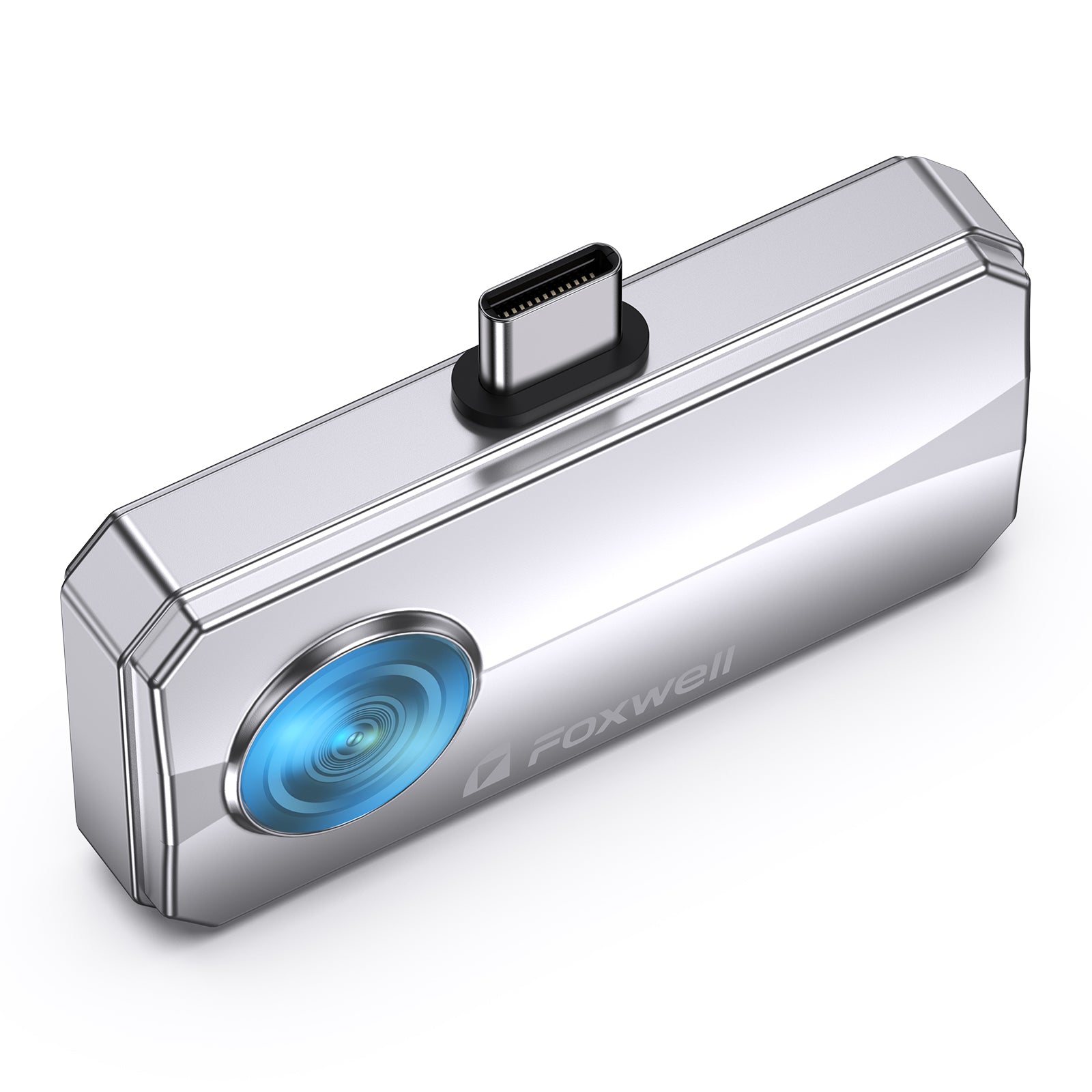
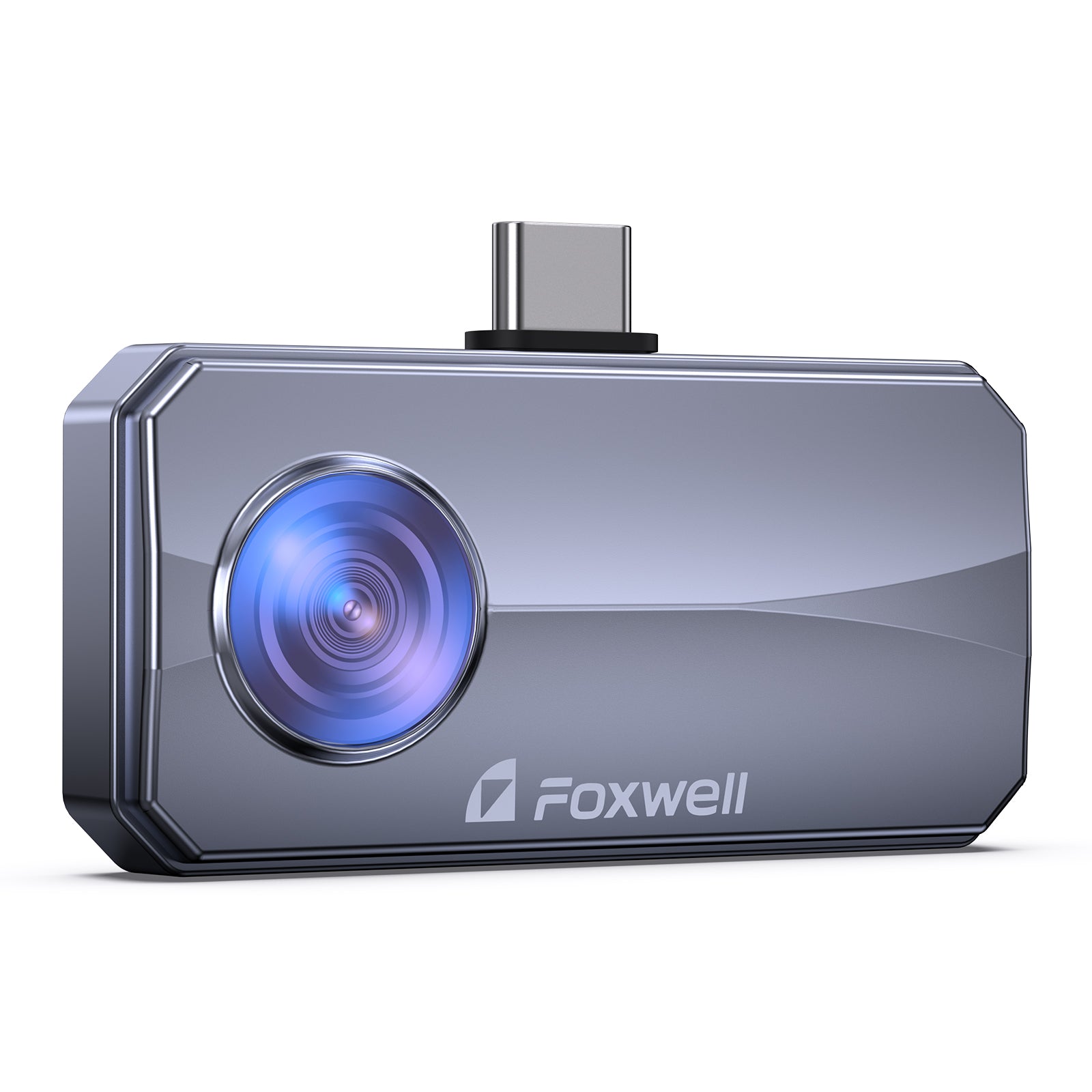
Foxwell RT100
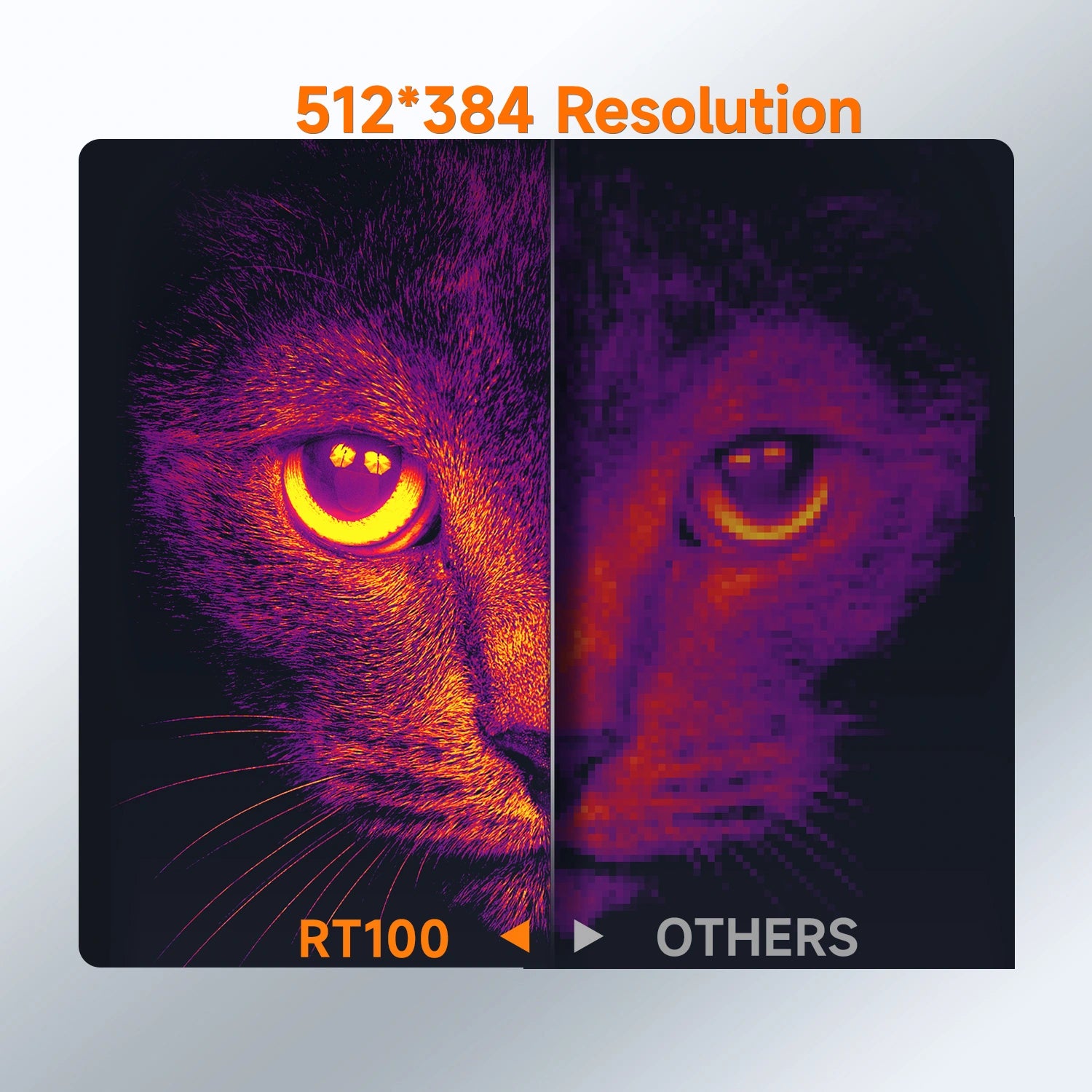
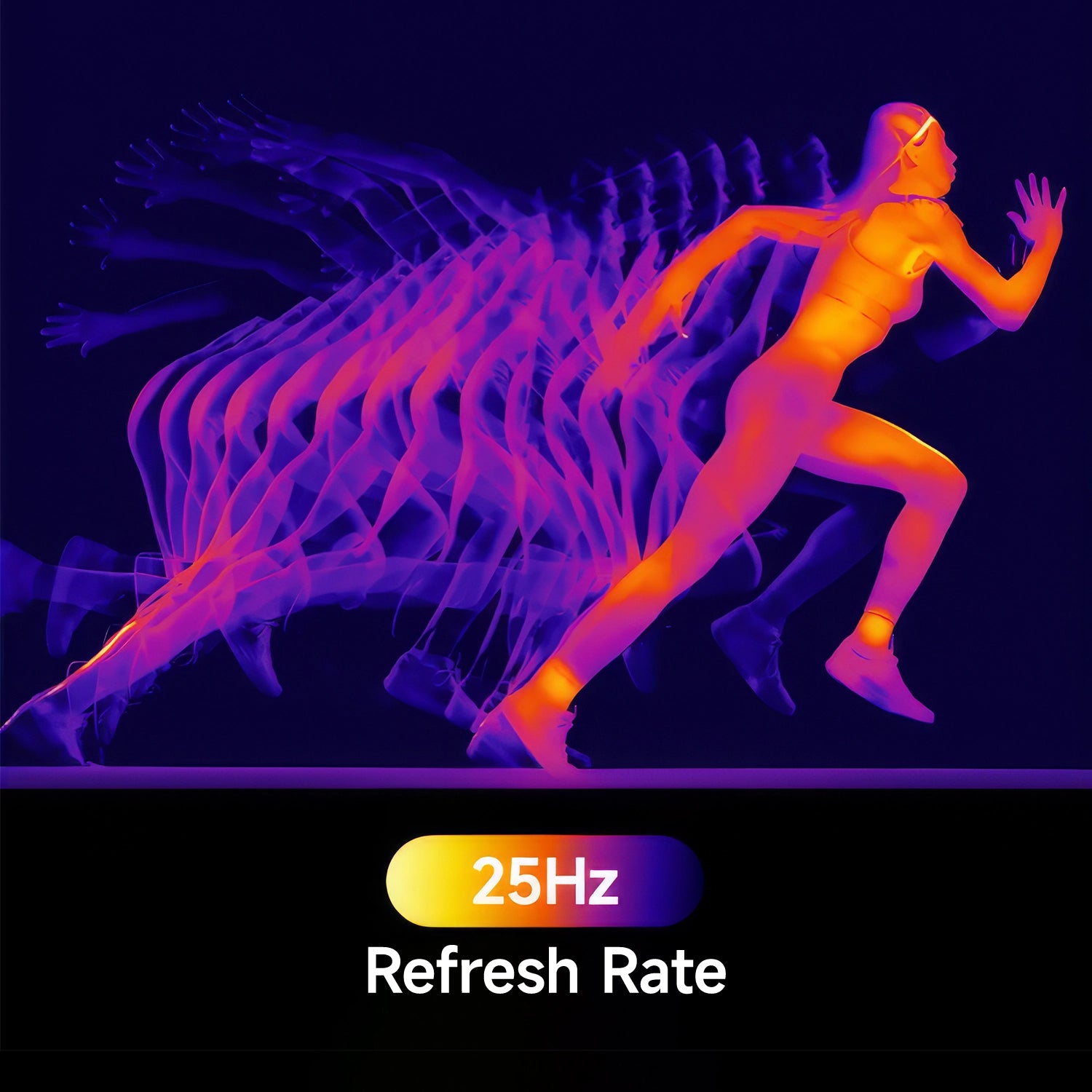
Thermal Camera for Android/iPhone Smartphone, 512x384 TISR Resolution and 25Hz Reframe Rate


 Lifetime Free Update
 One Year Warranty
 1-5 Days Shipping
 Lifetime Tech Support

Plug-and-Play

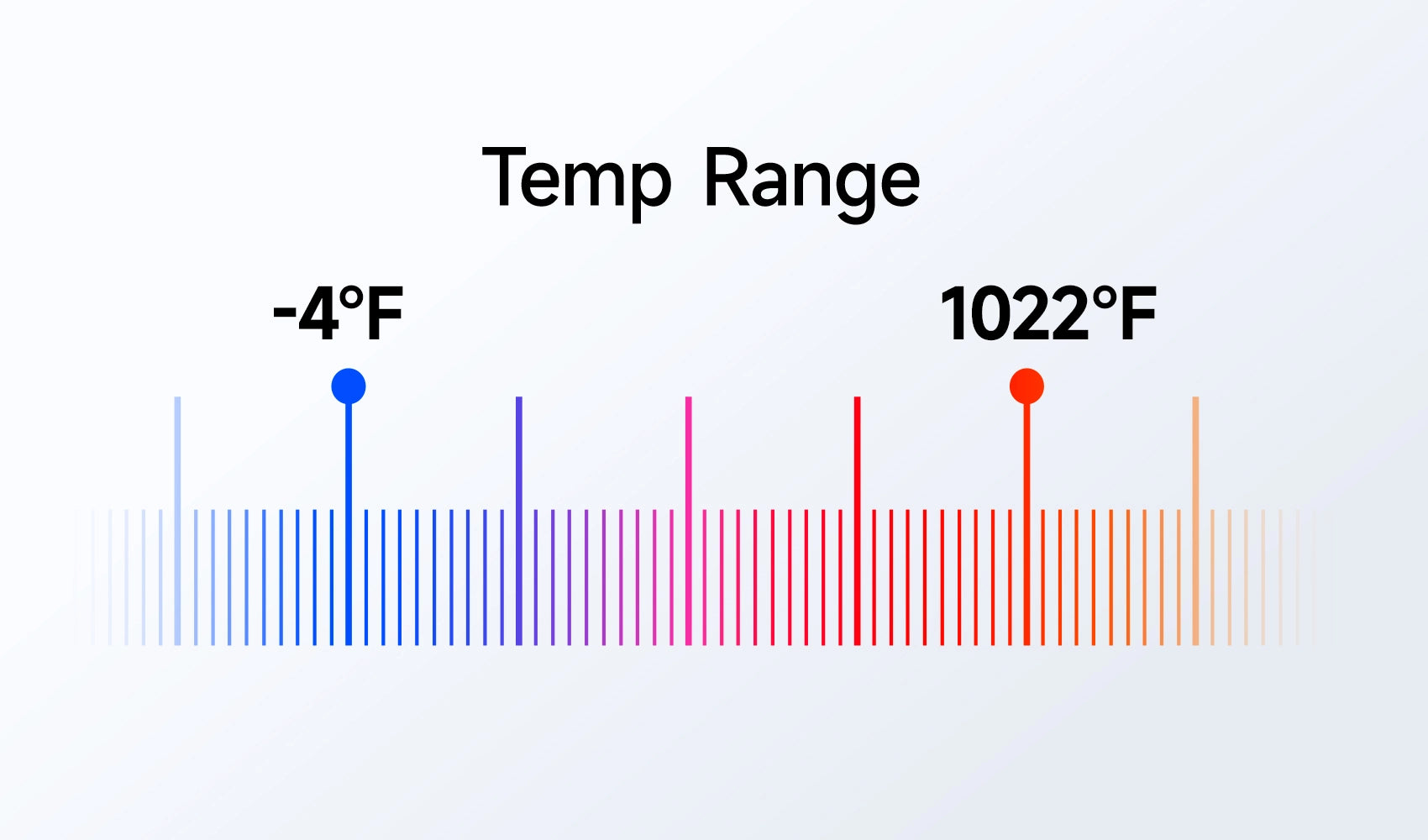
RT100 Thermal Imaging Camera for Android/IOS Smartphone, 512x384 TISR Resolution Thermal Imaging Camera, Thermal Imager for Home/Automotive Leak Inspection, Upgraded Temperature Accuracy, 25Hz Reframe Rate, -4°F - 1022°F Wider Measuring Range, making finding costly energy leaks or hidden electrical/mechanical faults easy.
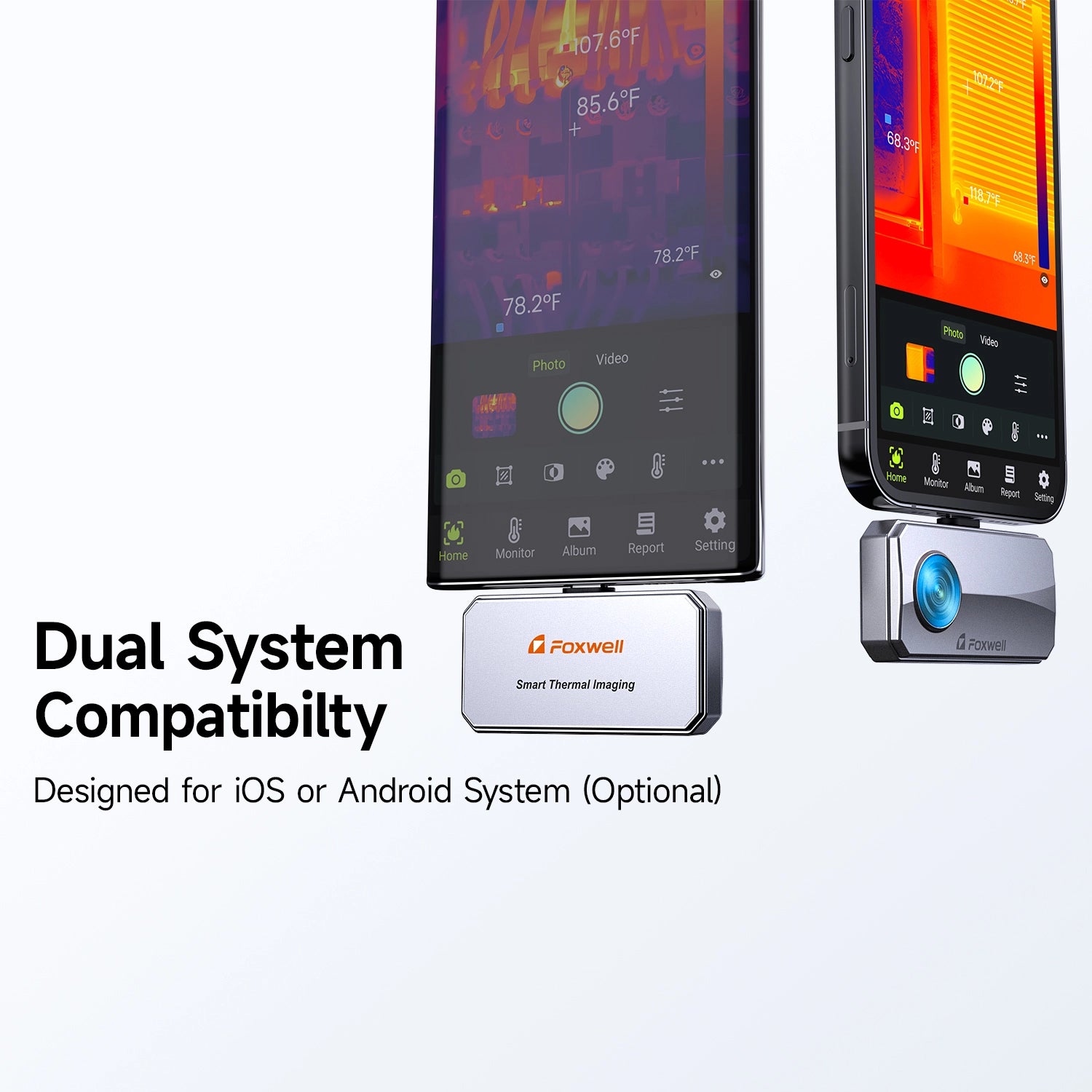
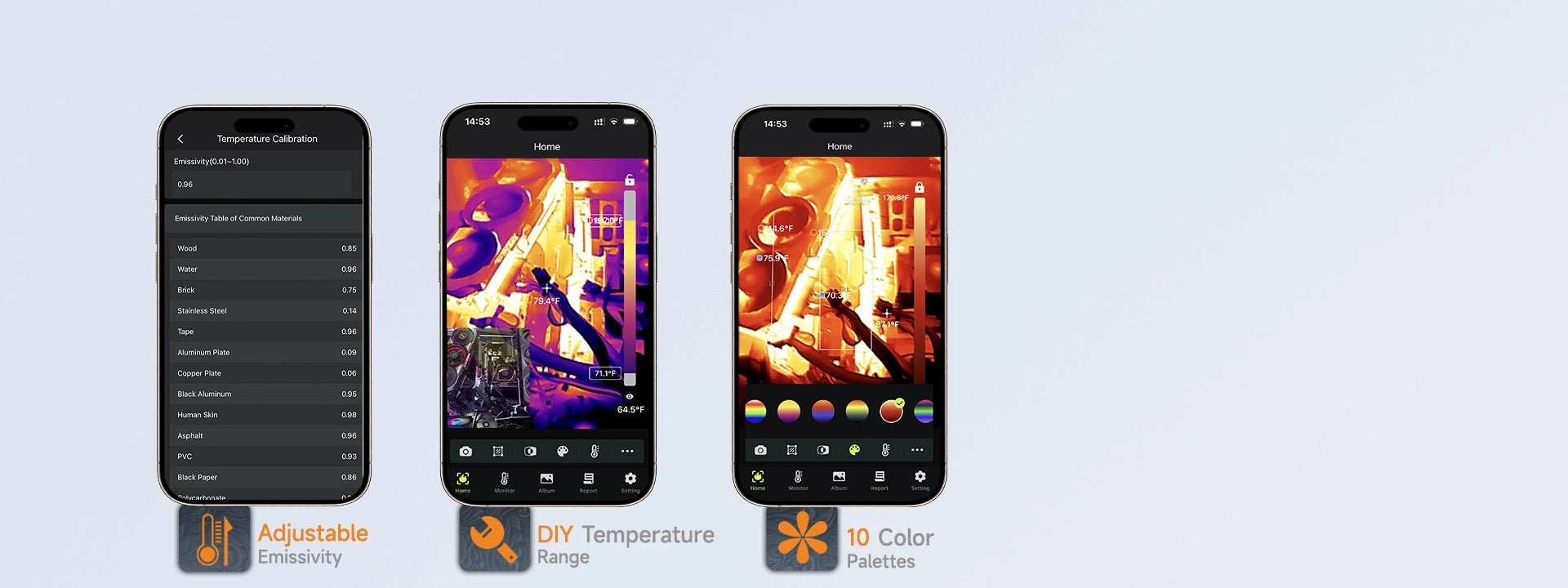
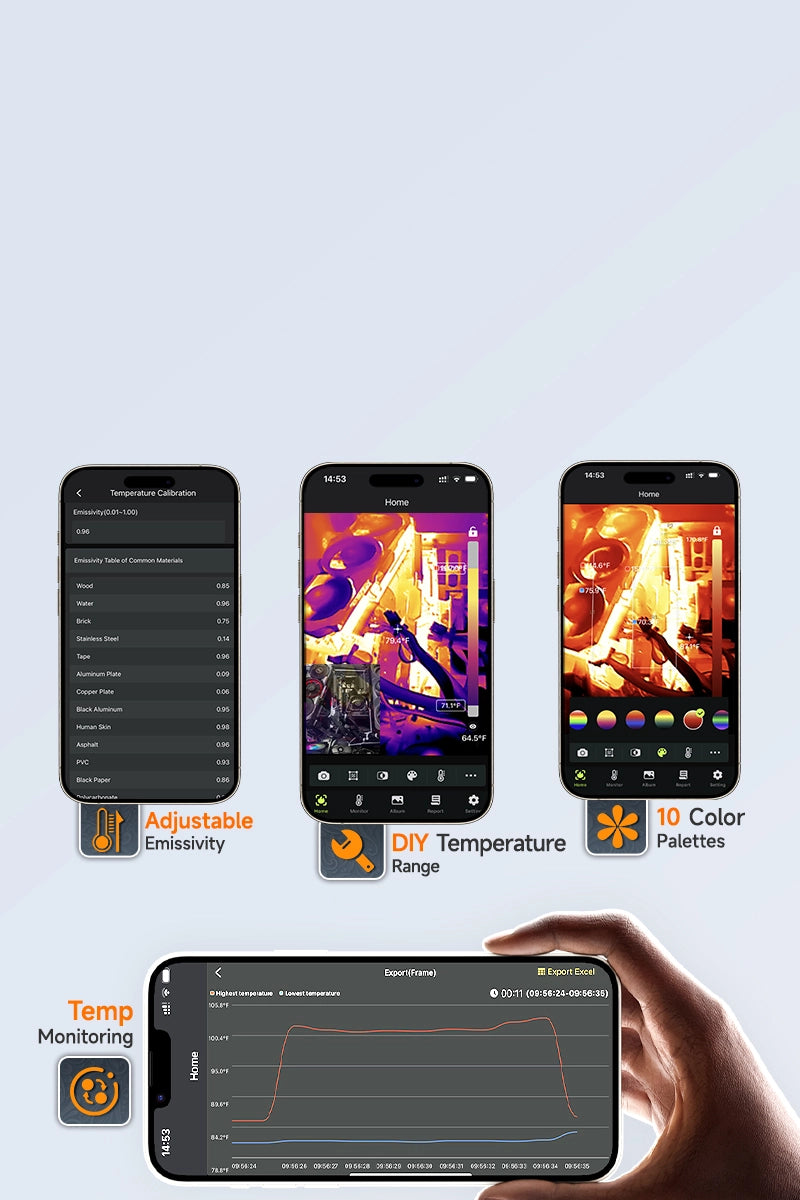
Enhance thermal images with 10 color palettes, adjustable contrast/sharpness settings, and precise temperature point/range analysis. Quickly process and export detailed PDF reports for precise yet flexible inspections across monitoring, security, and building diagnostics.

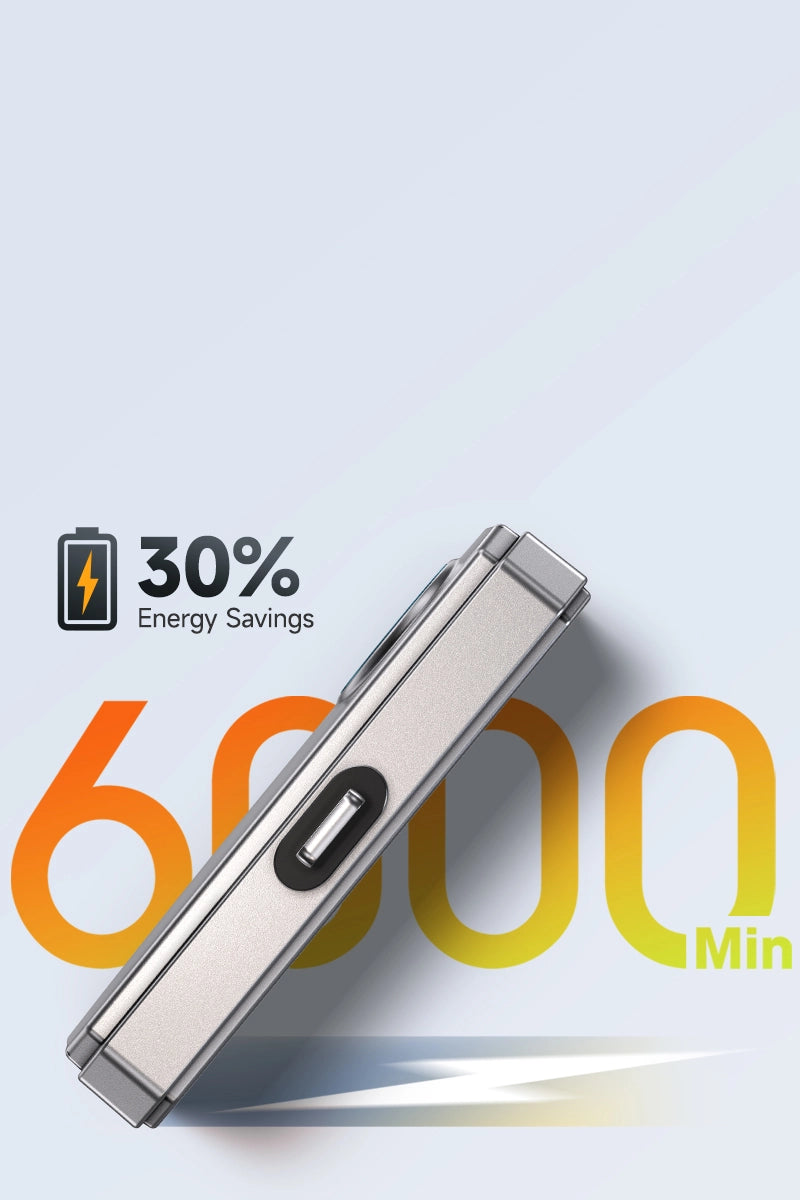
The RT100 thermal imaging camera plugs straight into your Android or iPhone—no charging, no downtime. Its ultra-low 0.24W power draw provides up to 10 hours of continuous use, 2–3 hours longer than most competitors. A generous 25.5-inch USB cable gives you extra reach, making it effortless to inspect tight spots or tricky angles.
3 Ways to Measure Temperature: Point/Line/Surface
Enables precise temperature measurement and analysis across diverse specialties.
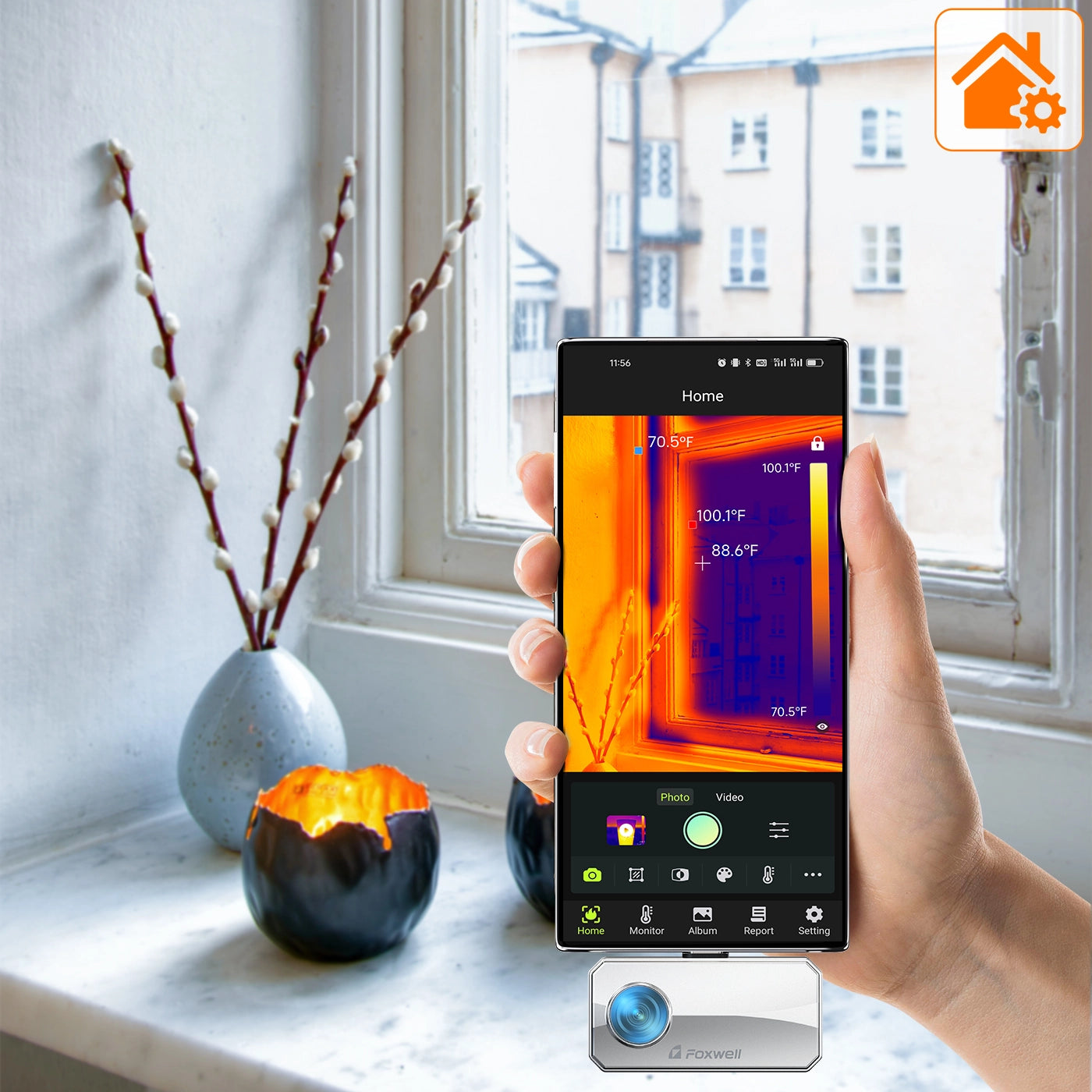
House Maintenance
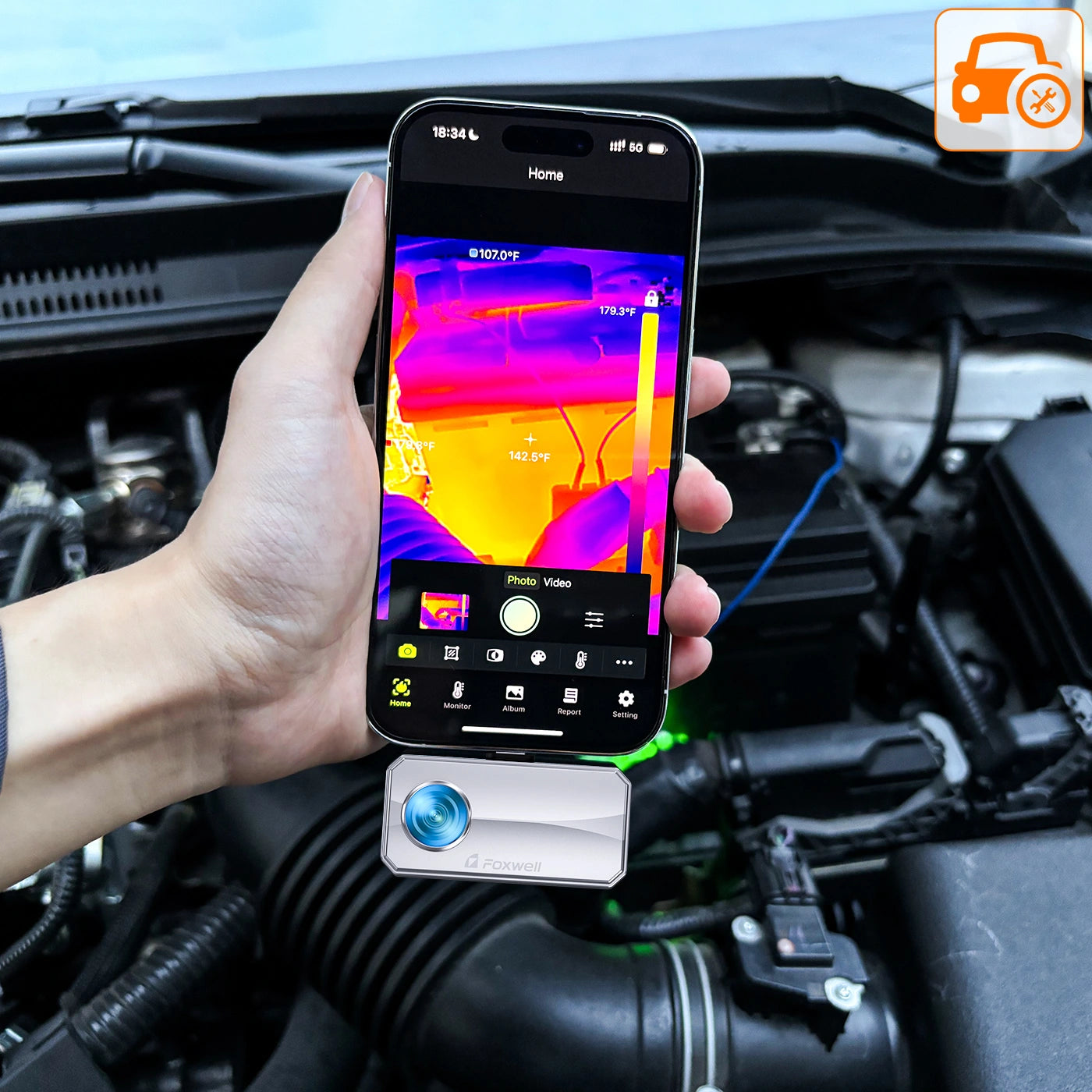
Engine Diagnosis
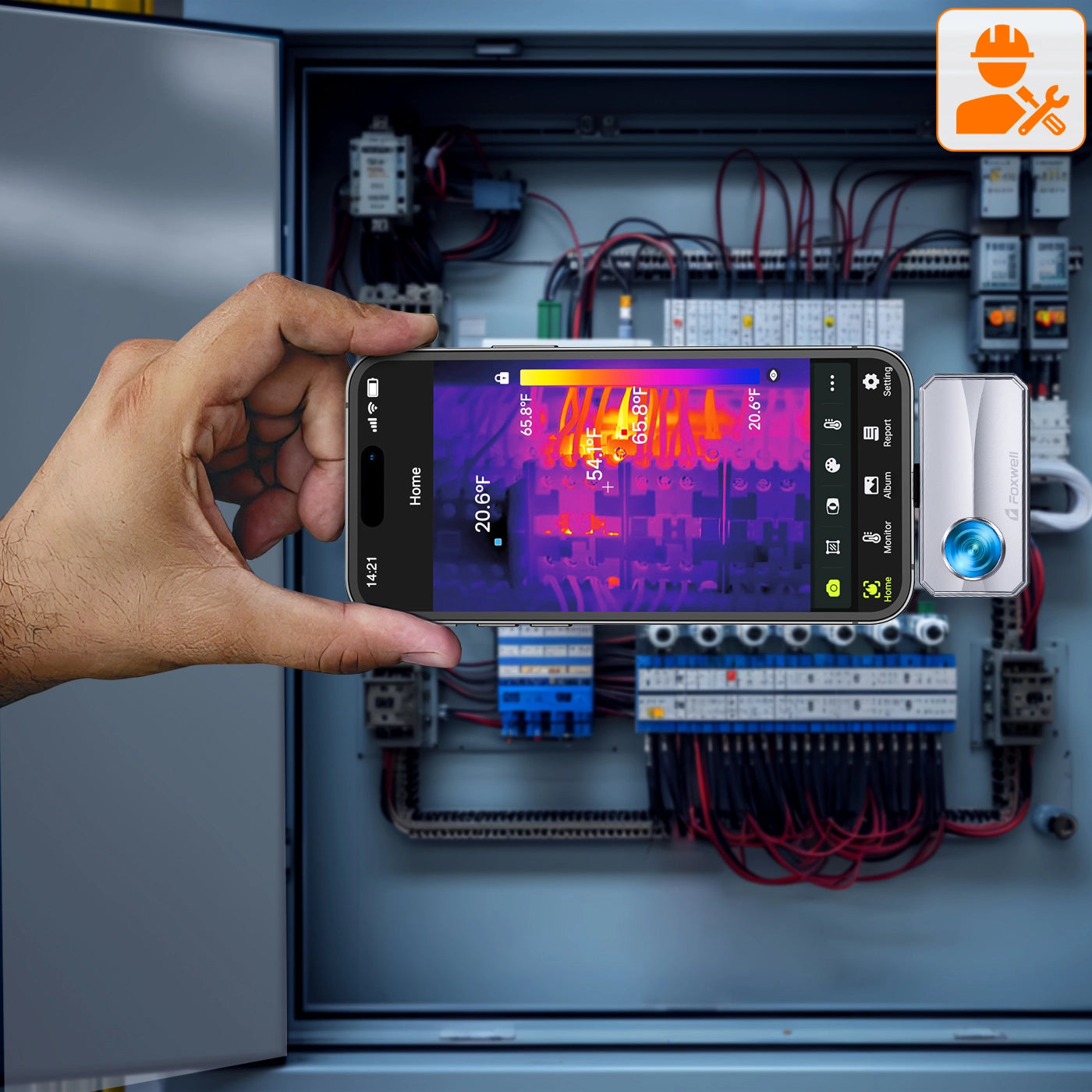
Electrical Inspection
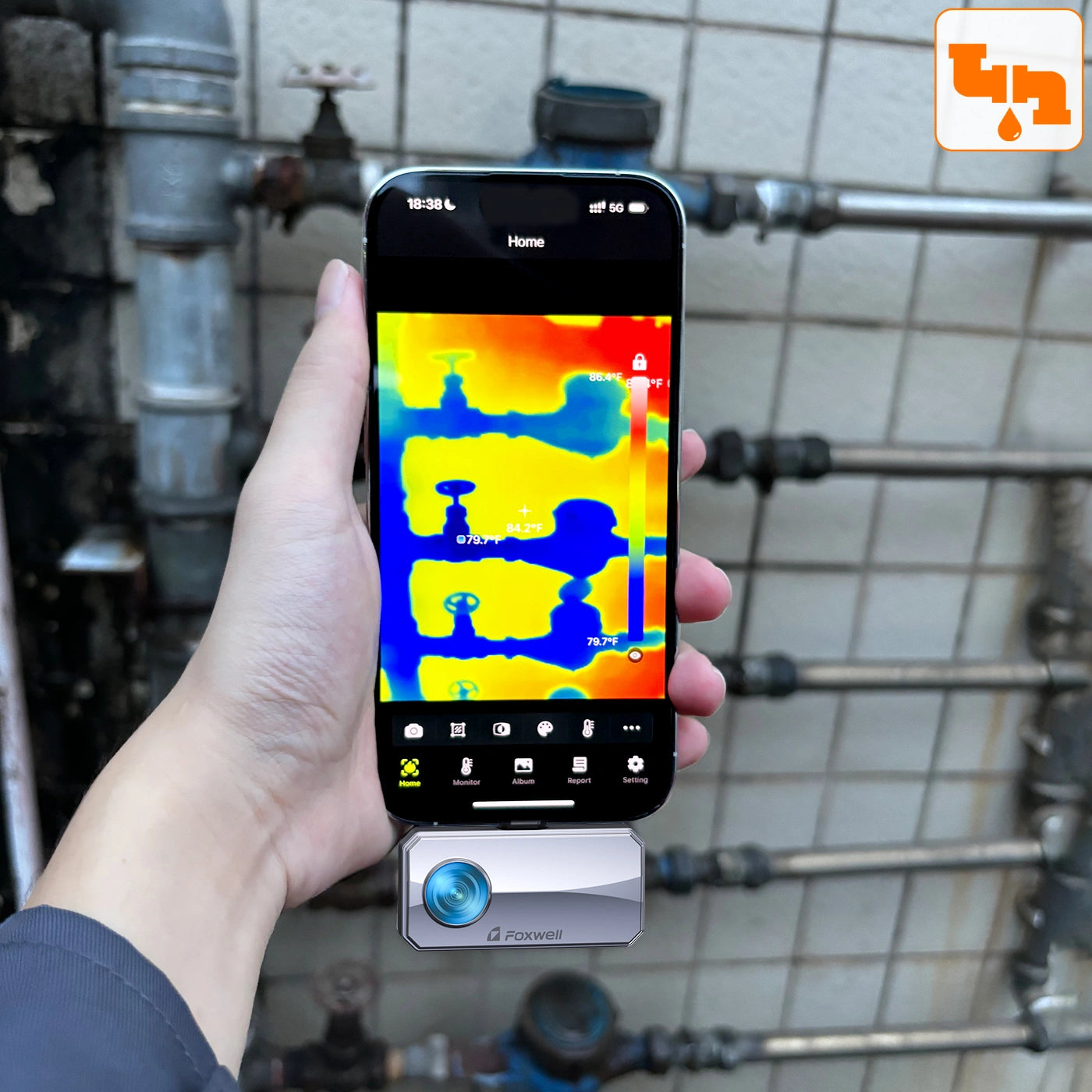
Water Leakage Inspection
Great Gadget for Exceptional Fun
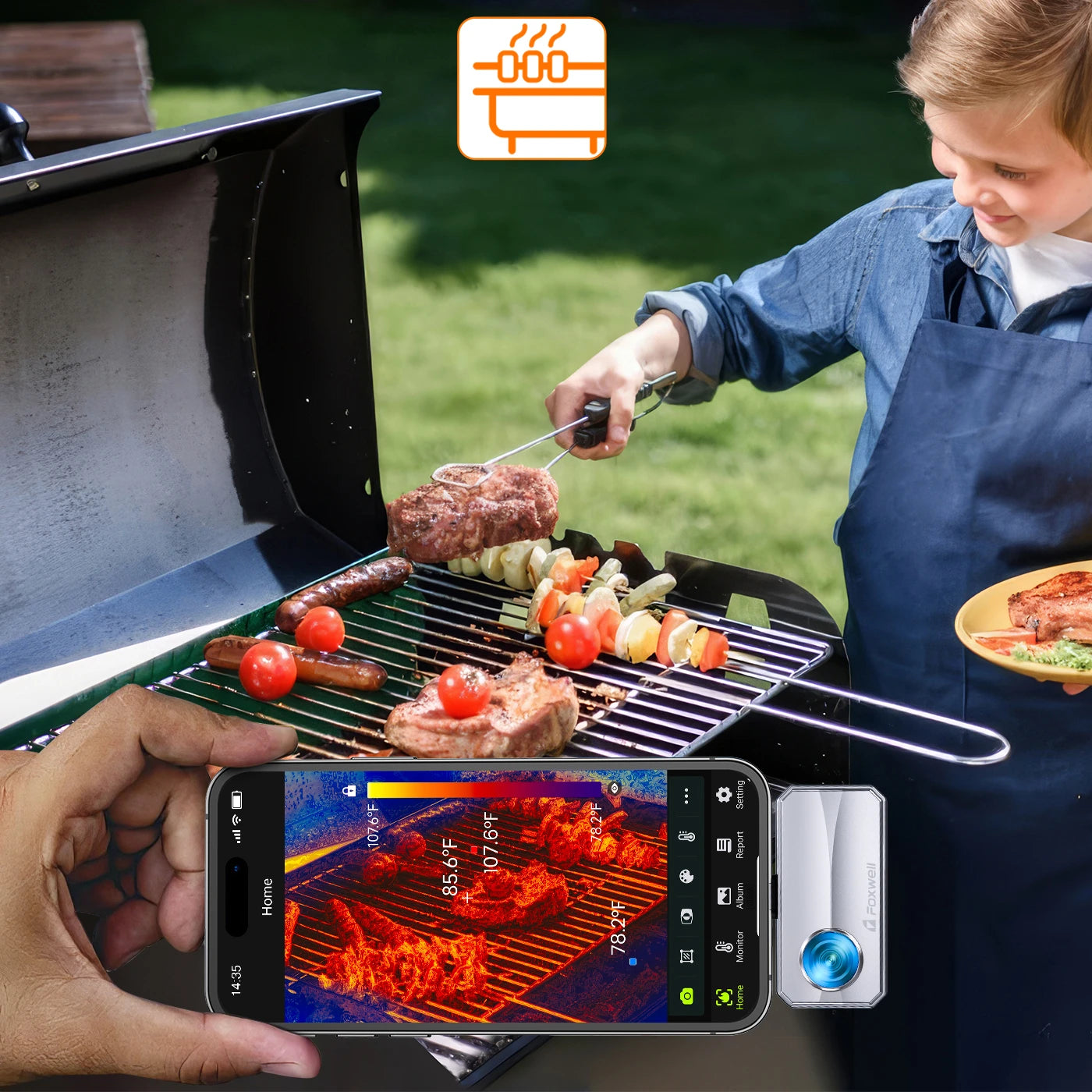
Family BBQ
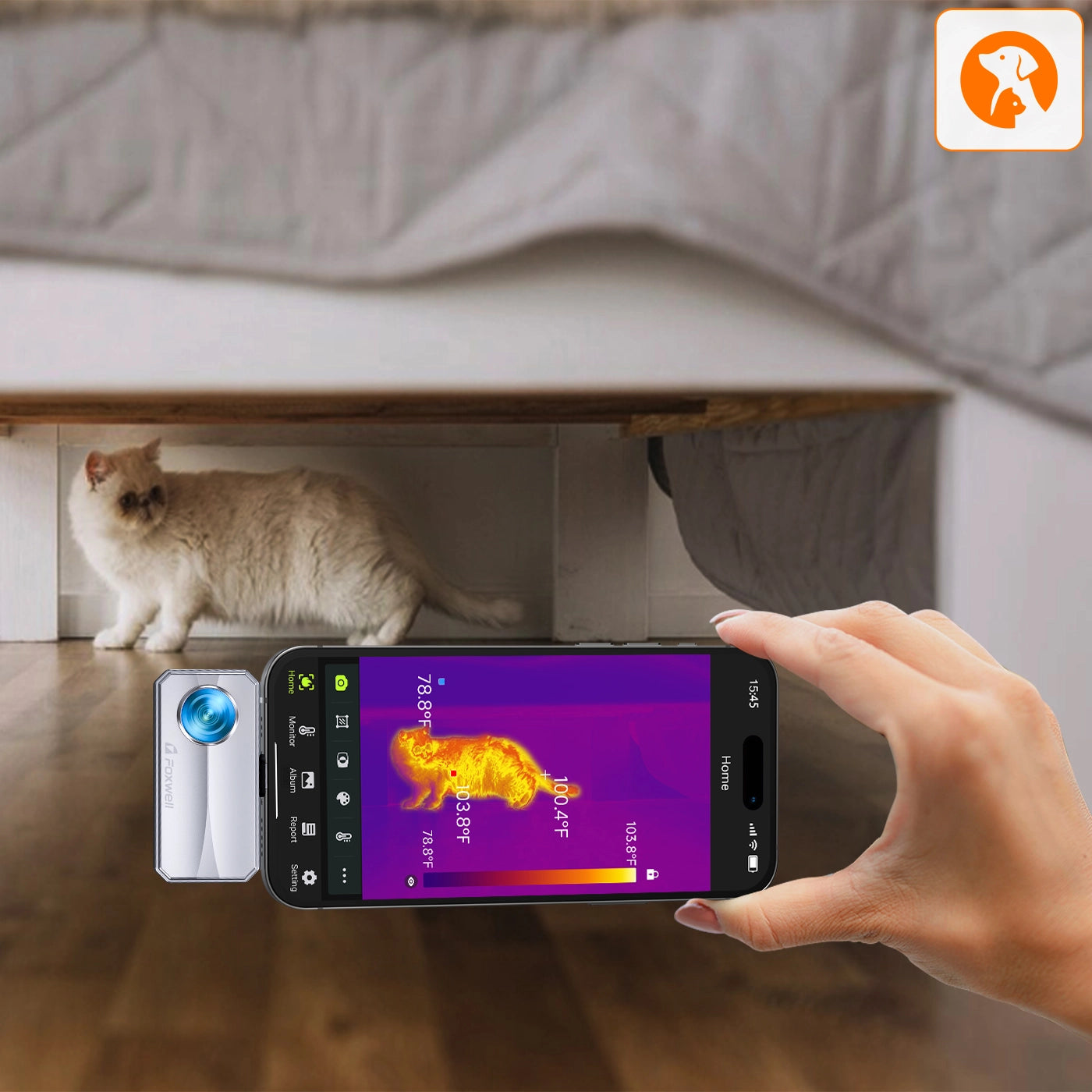
Find Your Pet
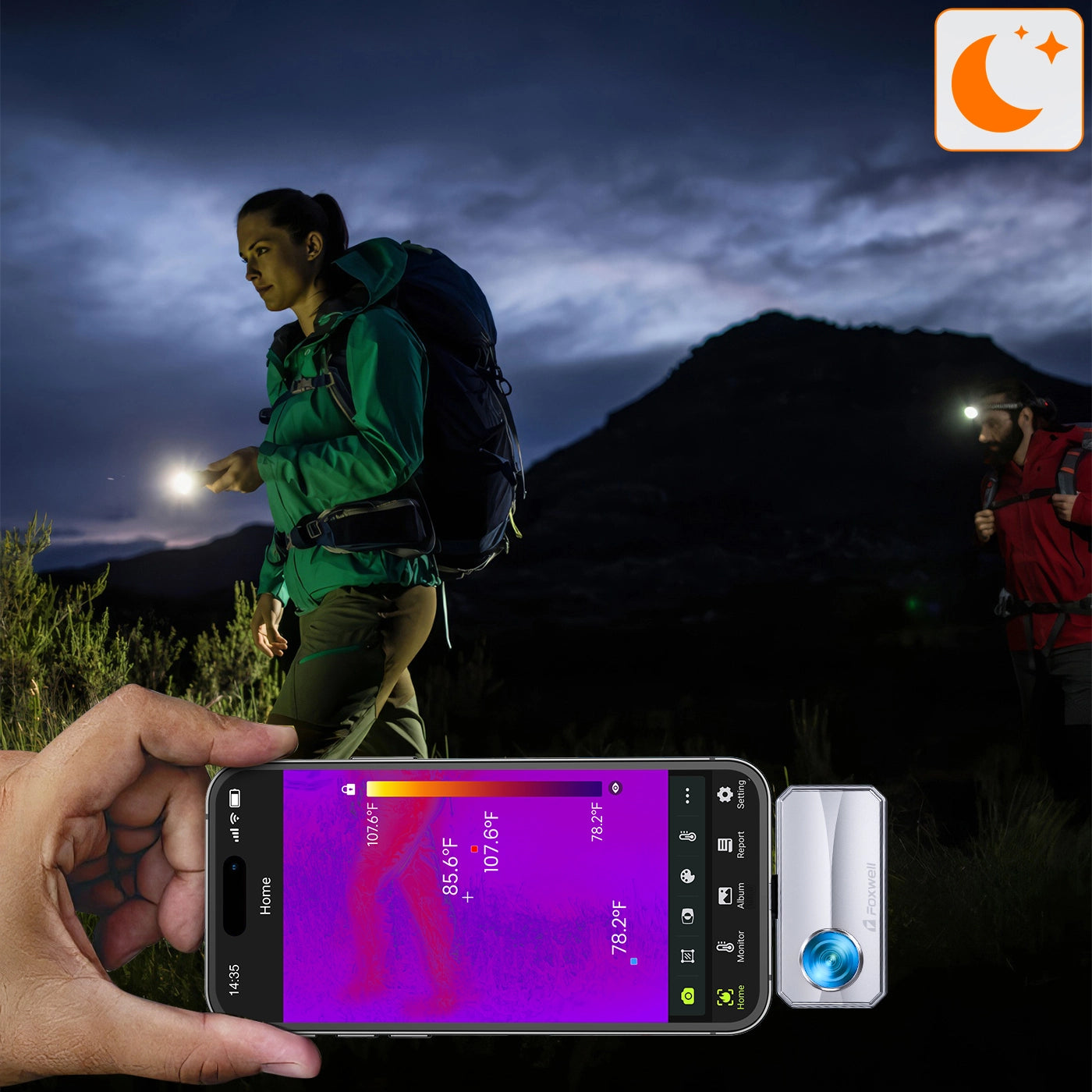
Night Hiking
Effortless Mobility, Anytime, Anywhere
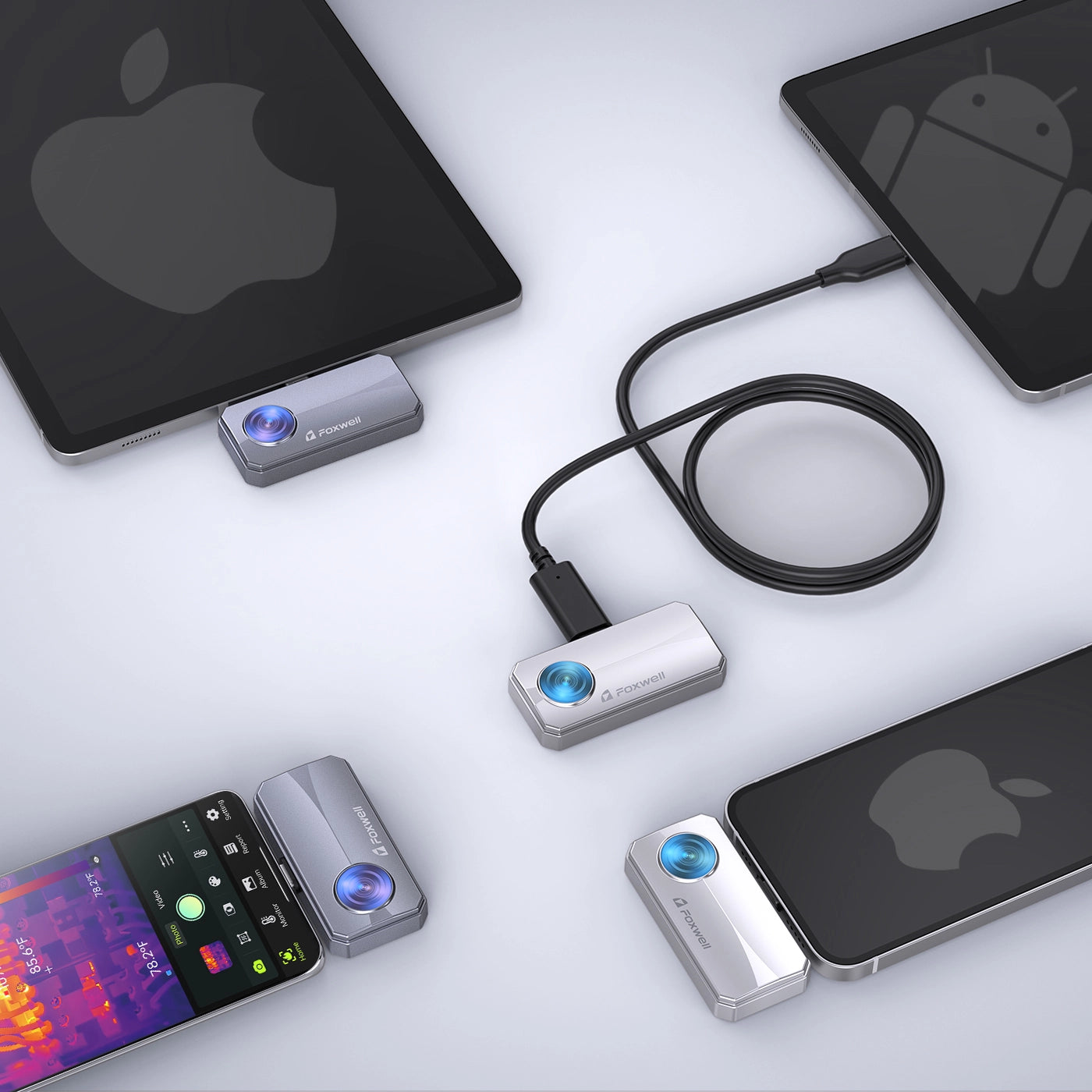
Designed for IOS/Android System (Optional)
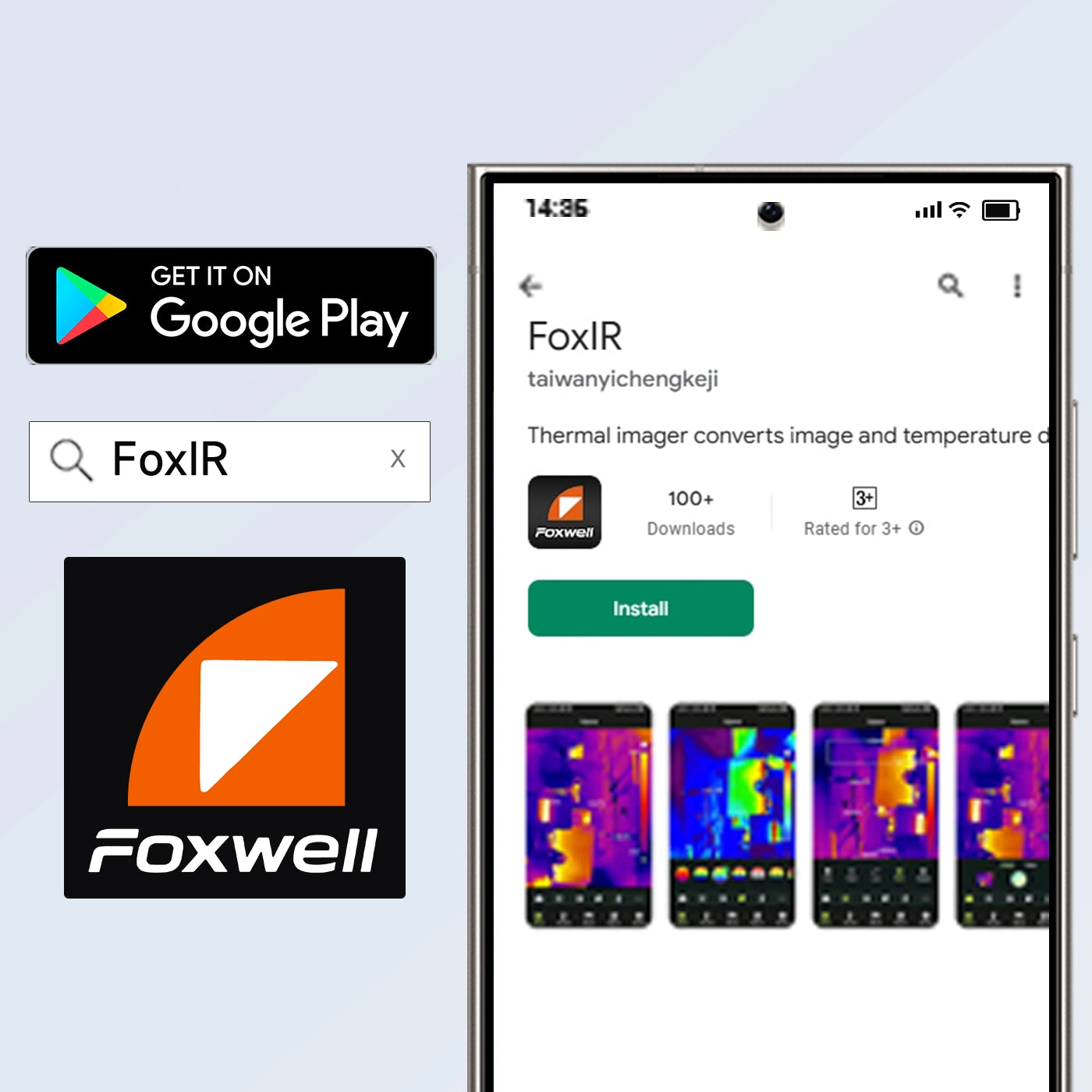
Streamlined APP Experience
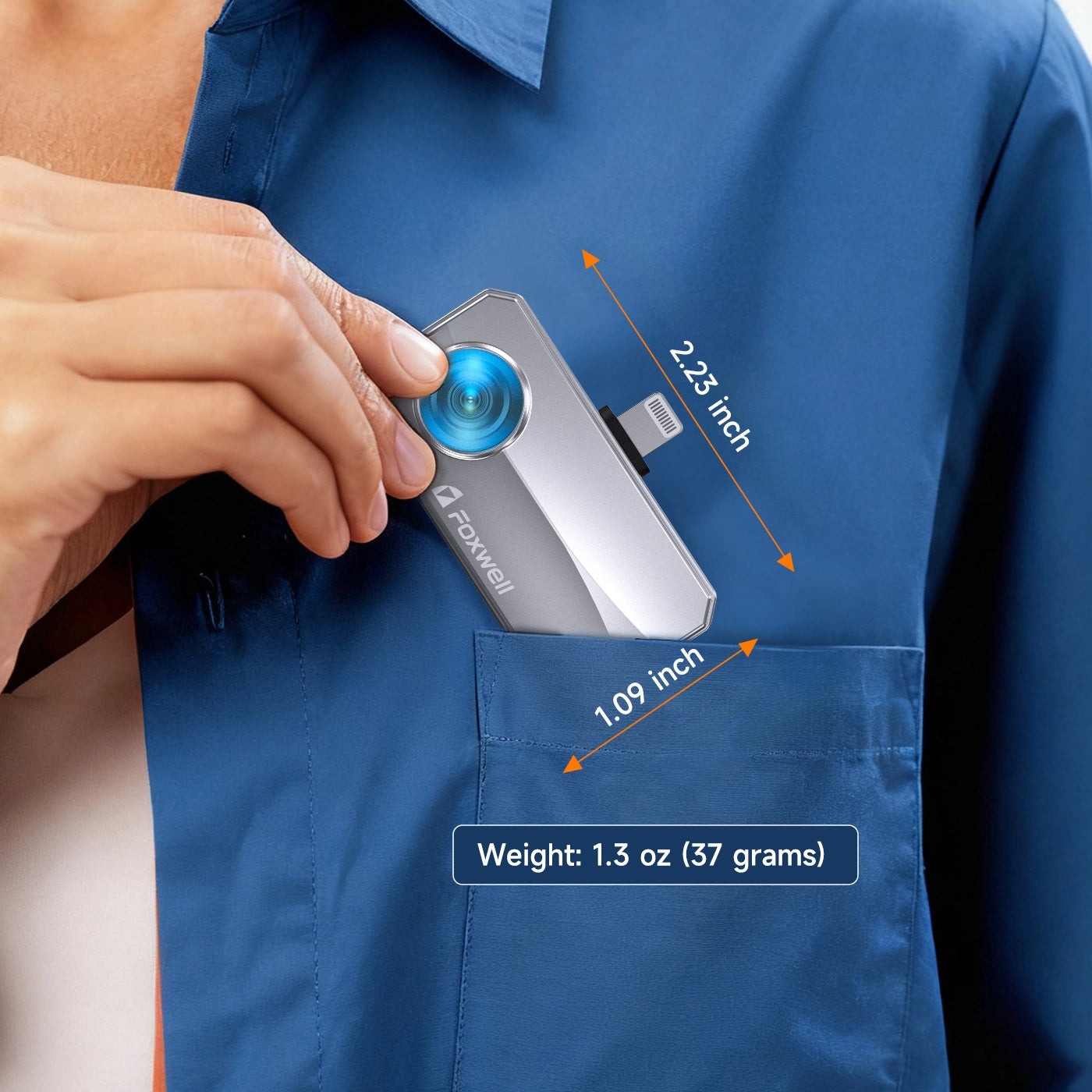
Built for Mobility
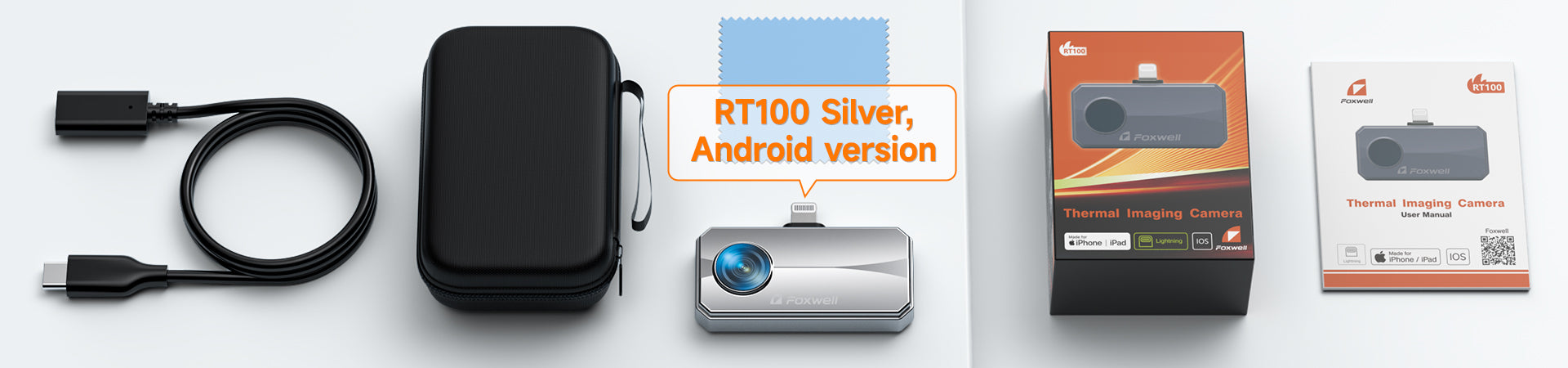
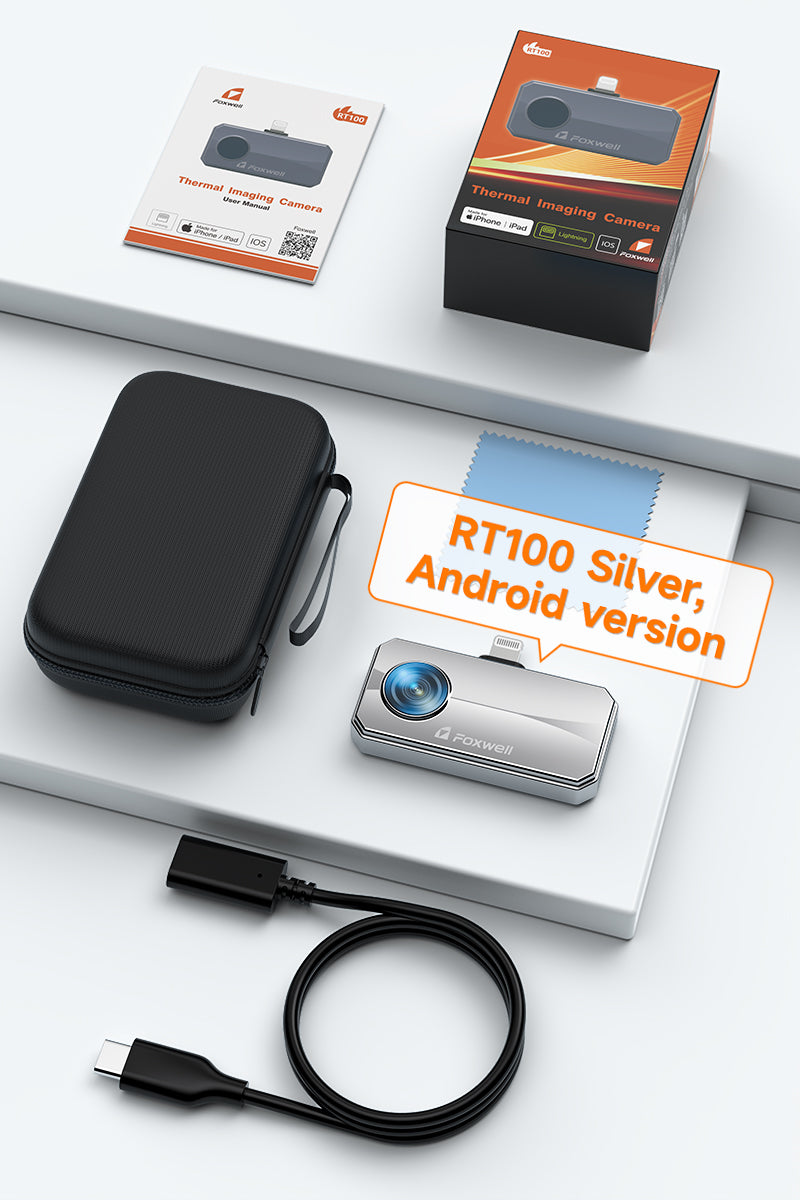
Package List
Frequently Asked Questions
1. Why does RT100 make a clicking sound every few seconds?
That’s normal.
The sound comes from automatic thermal calibration (shutter):
- Helps maintain temperature accuracy.
- Happens periodically during use.
Important:
- Cannot be fully disabled.
- Does not affect performance.
2. How accurate is the temperature measurement?
The RT100 detects temperature changes down to 0.1°C (sensitivity) with an accuracy of ±2°C / ±2%. It excels at finding hotspots and thermal anomalies but is not designed for lab-grade precision measurement.
3. Can I use RT100 for PCB or electronics repair?
Yes — with limitations.
- Good for locating overheating areas.
- Not ideal for ultra-fine component inspection without macro lens.
Recommended setup:
- Add macro lens for better precision
4. What can I actually use RT100 thermal camera for?
The RT100 is designed to help you quickly find invisible heat problems in real-world situations, such as:
- Home inspection → heat loss, insulation gaps, air leaks.
- Electrical systems → overheating wires, loose connections.
- Battery & solar setups → abnormal heat, overload issues.
- Automotive & mechanical → component overheating.
In short: If a problem creates heat, this camera helps you see it.
5. Does the RT100 support iPhone (iOS) and Android phones?
Yes. The RT100 is available in Android and iPhone (iOS) versions, each equipped with the corresponding interface. Please select the appropriate version when placing your order; cross-platform use is not supported.
6. Can I use the RT100 for non-industrial tasks, like finding lost pets?
Yes, the RT100 works well for daily, outdoor, and emergency use:
- Find lost pets: It detects heat from animals, so you can locate cats or dogs hiding in dark, cold, or covered areas, even at night.
- Outdoor safety: Use it for night hiking, camping, or spotting wildlife.
- Home safety: Check BBQ temperatures, find overheating outlets, or spot heat-related hazards around the house.
Important Note:
Foxwell RT100 is a general-purpose thermal imager, not a dedicated wildlife or pet tracking device. Detection can be affected by distance, thick foliage, obstacles, and environmental conditions.
7. Why does the RT100 app say “Please plug in device” even when it’s connected?
This is usually caused by connection or permission issues, not a defective device.
Please check:
- Your phone supports OTG (USB On-The-Go).
- USB permissions are enabled for the app.
- The device is fully plugged in (remove thick phone cases if needed).
Quick fixes:
- Reconnect the device.
- Restart the app.
- Try without a phone case.
8. Do I need to remove my phone case to use it?
In many cases, yes.
Some phone cases (especially thick or rugged ones) can block the USB-C connection and prevent proper detection.
Recommended:
- Remove the case for direct connection.
- Or use the included USB-C extension cable for easier access.
You may also like